
Buttons done right
A button with INPUT_PULLUP, counting presses, contact bounce, debouncing with millis() and with the Bounce2 library, and telling a press from a hold
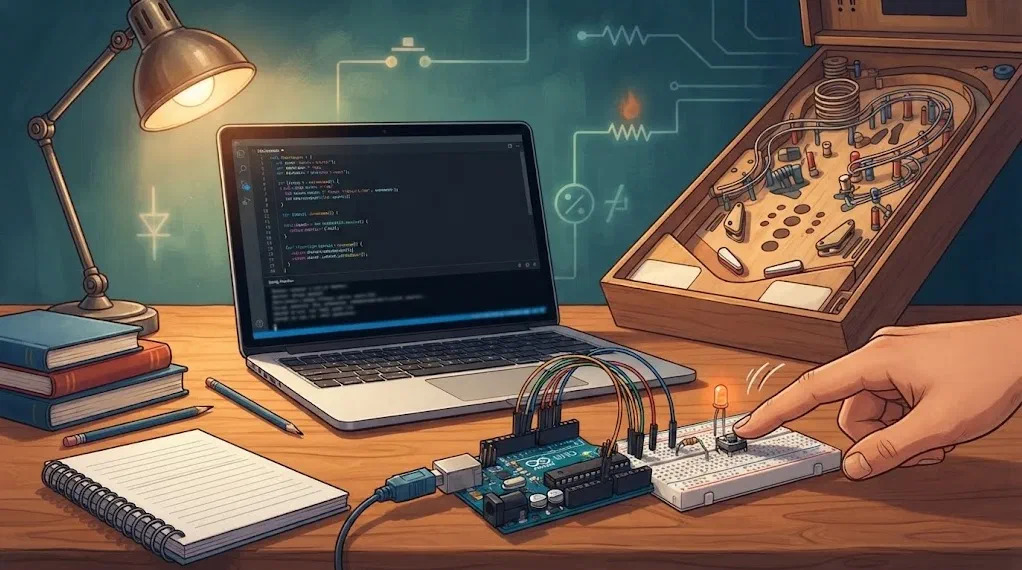
This year we are building a pinball machine. The player controls it with buttons only: two buttons on the sides move the flippers that hit the ball, and the Start button starts the game. A player expects the buttons to always do exactly what they press. A flipper that reacts late, or a Start button that counts one press twice, spoils every game.
A button looks like the simplest part of a circuit: you press it and it connects two wires. Even so, it comes with three traps, and today we’ll meet all three:
- a pin that isn’t connected to anything reads at random;
- a program that only asks is the button pressed? counts one press thousands of times;
- the metal contacts inside the button bounce a few times every time you press it.
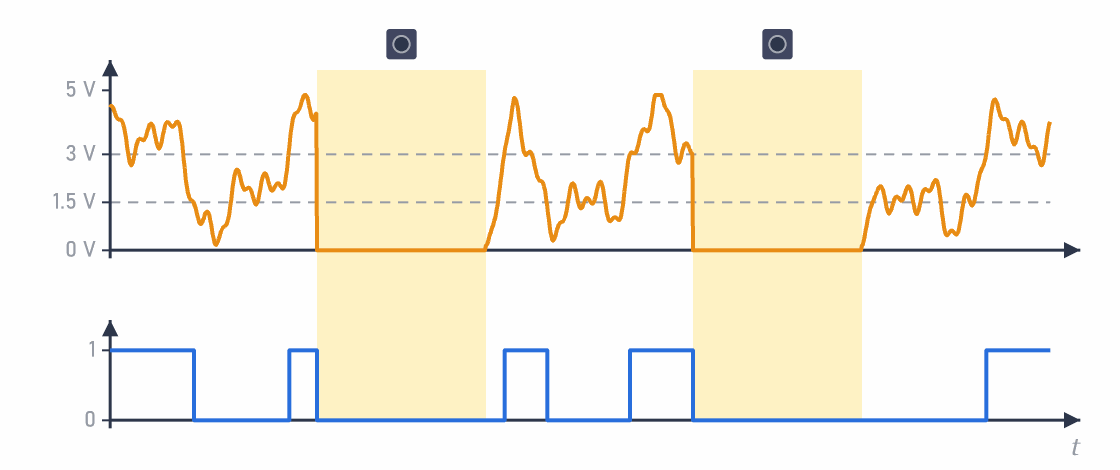
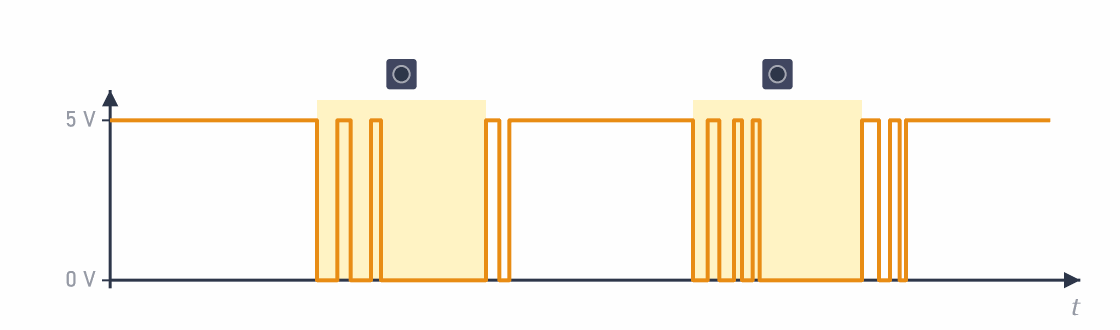
The first and third traps are shown in these two diagrams: how the voltage on pin D2 changes while we press and release the button twice in a row. The button is pressed in the yellow bands.
A floating pin. While the button isn’t pressed, the pin isn’t connected to anything, so its voltage wanders (top row). Above 3 V the Arduino is sure to read 1, and below 1.5 V it is sure to read 0. In between, it can read either. That is why digitalRead() (bottom row) gives 1 or 0 at random. Only while the button is pressed is the pin safely at 0 V.
Bounce. With the pull-up resistor that we’ll meet in Exercise 1, a released button holds the pin at 5 V and a pressed one at 0 V. Every time we press or release the button, the voltage jumps between 5 V and 0 V a few times before it settles. The jumps are drawn much wider than they really are: the whole bounce lasts a few milliseconds.
Three ways to read a button
A program can read the same button in three ways. The pinball machine needs all three:
| What the pinball machine does | What the program asks | Example |
|---|---|---|
| The flipper is up while you hold the button. | Is the button pressed now? | left and right flipper |
| One press adds one player. | Has the button just been pressed and released? | one short press on Start |
| A long hold starts a new game. | How long has the button been pressed? | holding Start for 1 s |
On many real pinball machines, a short press on the Start button adds a player, and holding the same button longer restarts the game. By the end of this lesson our Arduino will be able to do the same.
Materials
Each person gets:
- an Arduino Uno and a USB cable
- a large breadboard
- a small push button (6 × 6 mm)
- a 470 Ω resistor (yellow-violet-brown)
- a red LED and a 220 Ω resistor (red-red-brown)
- jumper wires
For the extra challenge at the end, you need one more button and one more 470 Ω resistor.
What the program has read will be shown by the LED on pin D8, the Serial Monitor and the Serial Plotter.
Wiring rules
- While we are wiring, the Arduino is unplugged from the USB cable.
- We don’t connect 5 V to the breadboard. As with the traffic lights, we only need GND from the Arduino.
- We connect the Arduino’s GND to the right (–) rail.
- We connect everything in the top half of the board, in rows 1 to 30.
- Before switching on, the leader checks the wiring.
How a button sits on the board and which of its legs are always connected is explained on the Breadboard page.
Exercise 1: A button without an external resistor
In the lesson Two traffic lights at a crossroads, the pin that read the message had a 10 kΩ pull-down resistor. Without it, the pin would be floating and read HIGH or LOW at random. A button needs the same: while it isn’t pressed, something has to hold the pin in a known state.
This time we won’t put that resistor on the board. The Arduino already has one inside, in its chip; we only have to switch it on. This built-in resistor connects the pin to 5 V, so it is a pull-up resistor. That is why we connect the button to the pin on one side and to GND on the other:
| Button | What the pin sees | digitalRead() |
|---|---|---|
| released | the built-in resistor pulls the pin towards 5 V | HIGH |
| pressed | the button connects the pin to GND | LOW |
Wiring
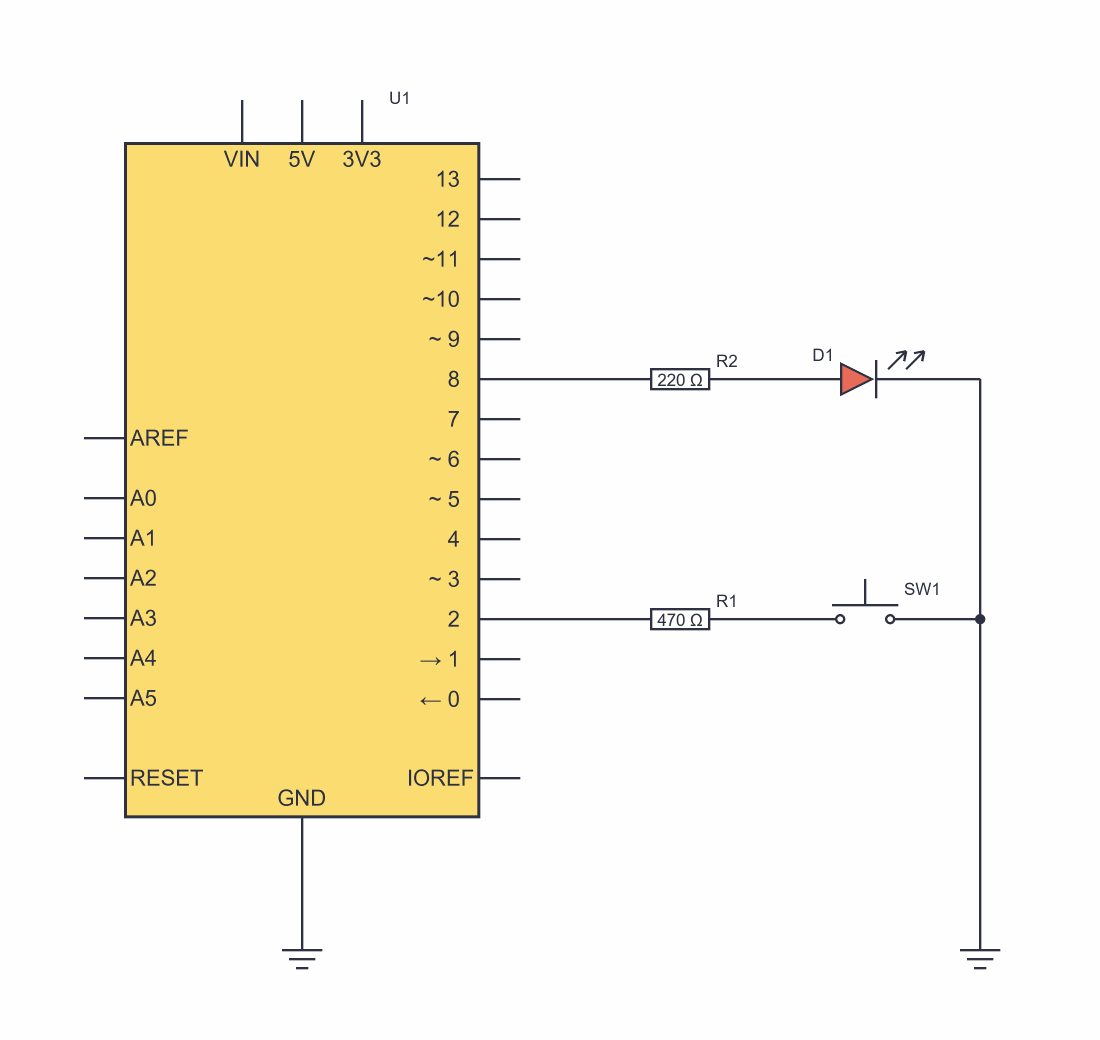
We connect the LED like the pedestrian light in the lesson Traffic lights for cars and pedestrians: the wire from D8 goes into the left half of row 3, the 220 Ω resistor sits across the centre gap, and the LED goes in the right half.
The button goes below it. The wire from D2 goes into the left half of row 8. The 470 Ω resistor lies along the left half of the board, from row 8 to row 12. The button sits across the centre gap, with its legs in rows 12 and 14, as in the example on the Breadboard page.
| Part | Arduino pin | Wire from the Arduino | Resistor | Right side |
|---|---|---|---|---|
| LED | D8 | a3 | 220 Ω: e3–f3 | red LED: long leg in j3, short leg in the right – rail |
| Button | D2 | a8 | 470 Ω: b8–b12 | button in e12, e14, f12, f14; wire from j14 to the right – rail |
| Common GND | GND | right – rail | – | – |
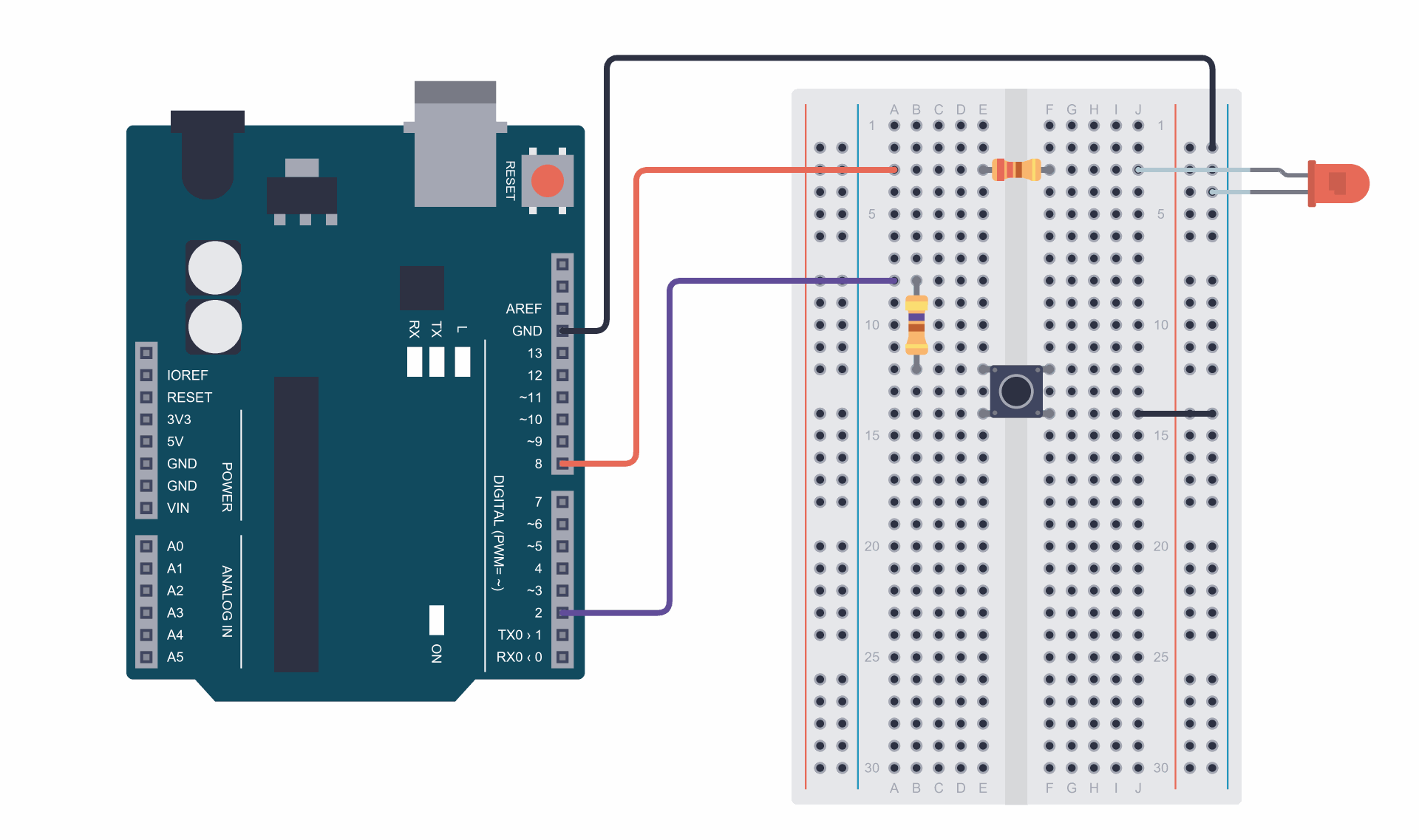
The button uses two diagonal legs: e12 and f14. Pressing it connects row 12 to row 14, so the path goes like this: D2 ⇒ row 8 ⇒ resistor ⇒ row 12 ⇒ button ⇒ row 14 ⇒ GND.
What is each part for?
- The LED with its 220 Ω resistor shows what the program has read. The long leg (anode) goes towards the resistor and the pin, and the short one (cathode) towards GND. As with the traffic lights, the current is about 14 mA.
- The button goes to GND, not to 5 V. There is no 5 V on the board, so even a pressed button can’t connect 5 V to GND.
- The 470 Ω resistor: protection. The Arduino remembers the last program we uploaded, even after we switch it off. If it still has the program for traffic light A from the last lesson, pin D2 is an output and sends
HIGH. Pressing the button would then connect that pin straight to GND. A short circuit like that can damage the pin. With the resistor, the current is at most 5 V / 470 Ω ≈ 11 mA, which doesn’t harm the pin. The built-in pull-up resistor is several tens of kΩ, so 470 Ω is small next to it, and a pressed button still givesLOW.
The first program
// C++
const int button = 2;
const int ledPin = 8;

void setup() {
  pinMode(button, INPUT_PULLUP);
  pinMode(ledPin, OUTPUT);
}

void loop() {
  int state = digitalRead(button);
  digitalWrite(ledPin, state);
}
Upload the program and press the button a few times. When is the LED lit?
Why is the LED lit when the button is NOT pressed?
HIGH, because the built-in pull-up resistor pulls the pin towards 5 V. The program sends that state straight to the LED, so it is lit. A pressed button connects the pin to GND and gives LOW, so the LED goes out.What is new in the program?
pinMode(button, INPUT_PULLUP);– The pin is an input, likeINPUTin the last lesson, but with the built-in pull-up resistor switched on. That is why the board doesn’t need an external resistor to 5 V.- Pressed is
LOW. With a pull-up resistor the logic is the other way round:LOWmeans pressed andHIGHmeans released. We’ll keep this in mind in every program with buttons.
Let the LED light up while we hold the button
Replace loop() with this:
// C++
void loop() {
  if (digitalRead(button) == LOW) {   // LOW means: pressed
    digitalWrite(ledPin, HIGH);
  } else {
    digitalWrite(ledPin, LOW);
  }
}
Now the LED is lit while you hold the button. That is exactly how a pinball flipper works: it is up while you hold the button. This is the first way to read a button: the program asks is the button pressed now?
Experiment: a floating pin
In setup(), change INPUT_PULLUP to INPUT and upload the program. Now the built-in resistor isn’t switched on, so while the button isn’t pressed, the pin isn’t connected to anything. Look at the LED: it may be lit, off, dimly lit, or change when you touch the resistor or a wire with your finger. The pin picks up interference from its surroundings. This is misconception 10 on the Misconceptions page: an unconnected input doesn’t read 0, it reads at random.
Change it back to INPUT_PULLUP and upload the program again.
Why pull-up and not pull-down?
In the last lesson we used an external pull-down resistor, so HIGH meant a message. Why do we connect the button the other way round now?
The Arduino Uno's chip only has built-in pull-up resistors. When we connect the button to GND, we don't need any extra part, and we don't have to bring 5 V to the board. That is why almost every device with buttons, from a remote control to a pinball machine, connects its buttons to GND. The program easily deals with the reversed logic: == LOW instead of == HIGH.
Exercise 2: Counting presses
Now we want to count presses, like the Start button that counts the players. The first attempt looks simple: when the button is pressed, we add one to the count. To see what is going on, the program prints two values every 100 ms: what pin D2 is reading right now, and the count.
// C++
const int button = 2;
const unsigned long PRINT_TIME = 100;   // we print every 100 ms
unsigned long count = 0;                // unsigned long, because the count will grow very fast
unsigned long lastPrint = 0;            // when we last printed

void setup() {
  pinMode(button, INPUT_PULLUP);
  Serial.begin(9600);
}

void loop() {
  if (digitalRead(button) == LOW) {
    count = count + 1;
  }

  if (millis() - lastPrint >= PRINT_TIME) {   // is it time to print?
    lastPrint = millis();
    Serial.print("Button:");
    Serial.print(digitalRead(button));
    Serial.print(", Count:");
    Serial.println(count);
  }
}
Open the Serial Monitor (9600 baud) and press the button once, briefly.
Why does the count show tens of thousands after one press?
loop() runs tens of thousands of times a second. While you hold the button, every pass sees LOW and adds one to the count. The program counted how many times it looked at the button while it was pressed, not how many times you pressed it.What is new in the program?
Serial.print("Button:");– We print two values on one line: what the pin reads (1 isHIGH, 0 isLOW) and the count. The labels with a colon give the lines their names in the Serial Plotter, as in the lesson Voltage divider, Arduino and PWM.if (millis() - lastPrint >= PRINT_TIME)– We print every 100 ms, not in every pass throughloop(). Printing is slow: at 9600 baud, a line like this takes more than 20 ms to reach the computer. If we printed in every pass,loop()would wait for the printing and read the button fewer than 50 times a second. This way it reads the button in every pass and prints 10 times a second. We met the samemillis()pattern with the traffic lights.unsigned long count– The count will grow bigger than anintcan hold (at most 32767). Anunsigned longholds much bigger numbers, like the time frommillis().
A press is a change
A press isn’t the button is pressed, it is the moment when the button changes from released to pressed. To notice it, the program has to remember what the button was like in the previous pass.
Above setup() there is now also the variable lastState, and the printing part stays the same:
// C++
const int button = 2;
const unsigned long PRINT_TIME = 100;   // we print every 100 ms
int count = 0;
int lastState = HIGH;                   // what the button was like last time: released at the start
unsigned long lastPrint = 0;            // when we last printed

void setup() {
  pinMode(button, INPUT_PULLUP);
  Serial.begin(9600);
}

void loop() {
  int reading = digitalRead(button);

  if (reading != lastState) {           // the button has changed
    lastState = reading;
    if (reading == LOW) {               // a change to pressed: that is a press
      count = count + 1;
    }
  }

  if (millis() - lastPrint >= PRINT_TIME) {   // is it time to print?
    lastPrint = millis();
    Serial.print("Button:");
    Serial.print(digitalRead(button));
    Serial.print(", Count:");
    Serial.println(count);
  }
}
Upload the program and open the Serial Plotter (in the Tools menu, 9600 baud). Press the button a few times, slowly. The Button line is at 1 while the button is released and drops to 0 while you hold it. The Count line goes up one step at every press.
What is new in the program?
int lastState = HIGH;– Remembers the state of the button from the previous pass. It is written abovesetup(), so its value stays remembered between two passes throughloop()(a global variable from the last lesson).!=– Is not equal to. The opposite of==. The condition is true when the state we have just read differs from the remembered one, so when the button has just changed.if (reading == LOW)– The button can change in two ways: when we press it and when we release it. We only count the first change.int count = 0;– The count is anintagain. Now it only counts presses, so it won’t grow big.
Contact bounce
Press the button 20 times, slowly, and watch the count. Did it reach exactly 20? With most buttons, the count sometimes jumps by 2 or 3, even though you pressed only once. In the Serial Plotter, this shows as one drop of the Button line while Count goes up two or three steps at once. If that doesn’t happen with your button, try pressing it lightly or releasing it quickly.
The program didn’t make a mistake. The button really does connect and disconnect several times. When the metal contacts inside the button hit each other, they bounce back, like a ball dropped on the floor, and only settle after a few milliseconds. The same happens when we release the button. A person can’t notice it, but the Arduino reads the button many times every millisecond and sees every bounce. This is called contact bounce.
The Plotter doesn’t show the bounces themselves. The program prints every 100 ms, and the contacts settle within a few milliseconds, so the printing almost always catches the button after it has settled. We only see the result: a count that jumps.

The diagram shows the bounce slower than it really is, so you can see each bounce. The top row shows what the Arduino reads on pin D2. The program from this exercise sees three presses while the button settles, and one more when it is released. That is why the count is at 4 after one press. The bottom row shows the count from the next exercise.
Exercise 3: Debouncing
The contacts settle within a few milliseconds, and a person can’t press a button twice in 50 ms. So we bring in a simple rule: after every change, we don’t look at the button for 50 ms. While the contacts are settling, the program doesn’t read them, so it doesn’t see the bounces. This is called debouncing the button.
The yellow bands in the diagram are those 50 ms. The first change counts straight away, and the bounces after it fall into the yellow band, where the program doesn’t see them.
This is the same millis() pattern we already use for printing: has enough time passed yet? Now the program uses it twice, for debouncing and for printing.
// C++
const int button = 2;
const unsigned long DEBOUNCE_TIME = 50;   // after a change, we don't look at the button for 50 ms
const unsigned long PRINT_TIME = 100;     // we print every 100 ms

int count = 0;
int lastState = HIGH;                     // what the button was like last time
unsigned long lastChange = 0;             // when the button last changed
unsigned long lastPrint = 0;              // when we last printed

void setup() {
  pinMode(button, INPUT_PULLUP);
  Serial.begin(9600);
}

void loop() {
  if (millis() - lastChange >= DEBOUNCE_TIME) {   // have the contacts settled?
    int reading = digitalRead(button);

    if (reading != lastState) {                   // the button has changed
      lastChange = millis();
      lastState = reading;
      if (reading == LOW) {                       // a change to pressed: that is a press
        count = count + 1;
      }
    }
  }

  if (millis() - lastPrint >= PRINT_TIME) {       // is it time to print?
    lastPrint = millis();
    Serial.print("Button:");
    Serial.print(digitalRead(button));
    Serial.print(", Count:");
    Serial.println(count);
  }
}
Press the button 20 times again. Now the count must reach exactly 20. In the Serial Plotter, Count now goes up exactly one step at every drop of the Button line.
What is new in the program?
const unsigned long DEBOUNCE_TIME = 50;– How long we don’t look at the button after a change. The type isunsigned longbecause we compare it with the time frommillis(), likeLONGEST_WAITin the traffic light.if (millis() - lastChange >= DEBOUNCE_TIME)– We only read the button once at least 50 ms have passed since the last change. Until then,loop()just glances at the clock and moves straight on.lastChange = millis();– We remember the moment of the change, both when the button is pressed and when it is released. From that moment we count the next 50 ms.Serial.print(digitalRead(button));– The variablereadingonly exists inside the curly brackets{ }where it is written, so we read the button again for printing.- The first change counts straight away. The program doesn’t wait for the contacts to settle. It reacts to the first touch, and the debounce time only applies after it. So a pinball flipper with a program like this would move the instant the player presses the button.
Why not delay(50)?
We could also debounce with delay(50) after every press. The count would work, but for those 50 ms the Arduino would be deaf and blind: it wouldn't read another button, move a flipper or update the display. A pinball machine has two flippers, a Start button and lots of switches on the playfield. With millis() the program doesn't wait, it just glances at the clock, so it can keep an eye on all of them at the same time.
Experiments
1. No debounce
Change DEBOUNCE_TIME to 0 and upload the program. The count sometimes jumps by 2 or 3 again, as in Exercise 2.
2. Too long a debounce
Change DEBOUNCE_TIME to 500 and press the button as fast as you can, 10 times. How many presses did the program count? Change DEBOUNCE_TIME back to 50.
Why does the program in experiment 2 miss some presses?
Exercise 4: A press or a hold?
Now we’ll make the Start button of a real pinball machine:
- a short press adds one player, up to 4;
- holding it for longer than 1 s starts a new game with one player;
- the LED is lit while we hold the button, like the flipper in Exercise 1.
When does the program know that a press was short? While the button is pressed, it doesn’t know yet: maybe the player is holding it for a new game. That is why we recognise a short press only when the button is released. We recognise a hold while the button is still pressed, as soon as 1 s has passed. Then we have to remember that we have already reported the hold, or releasing the button after the hold would add another player.
The whole program
// C++
const int button = 2;
const int ledPin = 8;
const unsigned long DEBOUNCE_TIME = 50;   // after a change, we don't look at the button for 50 ms
const unsigned long HOLD_TIME = 1000;     // how long we hold the button for a new game

int lastState = HIGH;                     // what the button was like last time
unsigned long lastChange = 0;             // when the button last changed
unsigned long pressStart = 0;             // when the button was pressed
bool holdReported = false;                // have we already reported the hold?
int players = 0;                          // number of players, from 0 to 4

void setup() {
  pinMode(button, INPUT_PULLUP);
  pinMode(ledPin, OUTPUT);
  Serial.begin(9600);
}

void loop() {
  if (millis() - lastChange >= DEBOUNCE_TIME) {   // have the contacts settled?
    int reading = digitalRead(button);

    if (reading != lastState) {                   // the button has changed
      lastChange = millis();
      lastState = reading;

      if (reading == LOW) {                       // just pressed
        pressStart = millis();
        holdReported = false;
      } else if (!holdReported) {                 // just released after a short press
        if (players < 4) {
          players = players + 1;
        }
        Serial.print("Players: ");
        Serial.println(players);
      }
    }
  }

  // Have we been holding the button long enough?
  if (lastState == LOW && !holdReported && millis() - pressStart >= HOLD_TIME) {
    holdReported = true;
    players = 1;
    Serial.println("New game! Players: 1");
  }

  digitalWrite(ledPin, lastState == LOW);         // the LED is lit while the button is pressed
}
Open the Serial Monitor and try it out:
- Press the button briefly three times. The program prints 1, 2 and 3 players, each time only when you release the button.
- Press it three more times. There are at most 4 players.
- Hold the button. After one second the program prints New game!, even though you are still holding the button. When you release it, no player is added.
What is new in the program?
const unsigned long HOLD_TIME = 1000;– How long you have to hold the button for a new game: 1000 ms is one second.pressStart = millis();– We remember the moment of the press. From it, we later work out how long we have been holding the button:millis() - pressStart.else if (!holdReported)–else ifmeans otherwise, if. The first condition was just pressed, so this part runs when the button has just been released, but only if the hold hasn’t been reported. Then the press was short.if (players < 4)– There can be at most four players. A fifth short press changes nothing.bool holdReported– Without it, the program would report a new game in every pass throughloop()while we hold the button, and would also add a player after we release it. This variable remembers that the hold has already been dealt with, so it is reported only once.- The hold check is outside the debounce part. While we hold the button, it doesn’t change, so the inner
ifdoes nothing. The program has to check how long we have been holding it in every pass. digitalWrite(ledPin, lastState == LOW);– The comparisonlastState == LOWgivestrueorfalse, and for the Arduino that is the same asHIGHandLOW. With one line, the LED follows the button.- There isn’t a single
delay()inloop(). The program debounces the button, measures how long we hold it and lights the LED, all at the same time.
A player holds the Start button for half a second and releases it. What does the program print?
Exercise 5: The Start button with the Bounce2 library
Almost every program with buttons needs debouncing, so other programmers have already written it and published it as a library: ready-made code that we include in our own program. One of the best-known libraries for buttons is called Bounce2. We’ll make the same Start button as in Exercise 4, but leave the debouncing and the timing to the library. The wiring stays the same.
Installing the library
- In the Arduino IDE, open the Library Manager: the icon with books on the left, or the Sketch ⇒ Include Library ⇒ Manage Libraries… menu.
- Type Bounce2 into the search box.
- Install the Bounce2 library by Thomas O Fredericks.
Installing needs an internet connection. If there isn’t one at the workshop, the leader installs the library on every computer beforehand.
The plan is almost the same as in Exercise 4. Only the remember when it was pressed part is missing, because the library remembers that.
The program with the library
// C++
#include <Bounce2.h>                      // a library for debouncing buttons

const int button = 2;
const int ledPin = 8;
const unsigned long HOLD_TIME = 1000;     // how long we hold the button for a new game

Bounce2::Button start;                    // the Start button
bool holdReported = false;                // have we already reported the hold?
int players = 0;                          // number of players, from 0 to 4

void setup() {
  start.attach(button, INPUT_PULLUP);     // the button is on D2, with the built-in pull-up resistor
  start.interval(10);                     // a change counts once the button has been steady for 10 ms
  start.setPressedState(LOW);             // pressed is LOW
  pinMode(ledPin, OUTPUT);
  Serial.begin(9600);
}

void loop() {
  start.update();                         // read and debounce the button

  if (start.pressed()) {                  // just pressed
    holdReported = false;
  }

  if (start.released() && !holdReported) {   // just released after a short press
    if (players < 4) {
      players = players + 1;
    }
    Serial.print("Players: ");
    Serial.println(players);
  }

  // Have we been holding the button long enough?
  if (start.isPressed() && !holdReported && start.currentDuration() >= HOLD_TIME) {
    holdReported = true;
    players = 1;
    Serial.println("New game! Players: 1");
  }

  digitalWrite(ledPin, start.isPressed());   // the LED is lit while the button is pressed
}
Upload the program and repeat all three tests from Exercise 4. The program must work the same way.
What is new in the program?
#include <Bounce2.h>– Includes the library in the program. If the library isn’t installed, compiling gives the errorBounce2.h: No such file or directory.Bounce2::Button start;–startis an object: a variable that has its own functions as well as its data. We call an object’s functions with a dot, for examplestart.update(), just as we already callSerial.begin()andSerial.print().Bounce2::means that the typeButtoncomes from the Bounce2 library. The object itself remembers what we kept in the variableslastState,lastChangeandpressStartin Exercise 4.start.attach(button, INPUT_PULLUP);– Links the object to pin D2 and sets the pin as an input with a pull-up resistor, so we don’t writepinMode()for the button.start.interval(10);– How long the button must stay steady before the library accepts a change: 10 ms. Why this is less than the 50 ms in Exercise 3 is explained below.start.setPressedState(LOW);– We tell the library once that pressed meansLOW. After that, we don’t write the reversed logic anywhere in the program:start.isPressed()givestruewhen the button is pressed.start.update();– The library reads the pin and debounces it. That is why it must be in every pass throughloop(), once, before any question about the button.start.pressed()andstart.released()– Givetrueonly in the pass in which the button has just been pressed or released.start.isPressed()– Givestruewhile the button is pressed.start.currentDuration()– How many milliseconds the button has been in its current state. While we hold it, that is how long we have been holding it, so we don’t needpressStart.
The three ways to read a button from the start of the lesson each have their own function in the library: now is isPressed(), just is pressed() and released(), and how long is currentDuration().
What is different?
Both exercises debounce the button, but in different ways:
- Exercises 3 and 4: the program reacts to the first change, and then doesn’t look at the button for 50 ms.
- Bounce2: a change only counts once the button has been steady for 10 ms. Every bounce of the contacts starts those 10 ms again, so the library waits for the contacts to settle and only then reports the press.
That is why 10 ms is enough for the library: it doesn’t have to wait longer than the whole bounce, only a little longer than the gap between two bounces.
| Exercise 4: our code | Exercise 5: Bounce2 | |
|---|---|---|
| When does the program see a press? | straight away, when the contacts first touch | when the contacts have settled and stayed steady for 10 ms |
| A short glitch, shorter than 10 ms | counts as a press | doesn’t count |
| What the program remembers for the button | three variables | one object |
Reversed logic (LOW is pressed) | == LOW in several places | once, in setPressedState(LOW) |
| A second button | three more variables and all the code again | one more object |
| What has to be installed | nothing | the Bounce2 library |
Pros of the library:
- The program is shorter and easier to read. The functions have names that say what they ask:
pressed(),released(),isPressed(). - There are fewer places for mistakes. We can’t forget to remember the time of a change, or write
== HIGHinstead of== LOWsomewhere. - Several buttons are easy: each button gets its own object, for example
leftandrightfor the flippers. With the library, extra challenge 1 becomes much shorter. - Many people use the library in many projects, so most of its bugs have already been found and fixed.
- A short glitch on a wire, for example when you touch the wire with your finger, doesn’t count as a press.
Cons of the library:
- It has to be installed on every computer, and that needs an internet connection. A program you send to someone won’t compile until they install the same library.
- We can’t see how it works. If we hadn’t written the debouncing ourselves first, we wouldn’t know what
interval(10)means or whyupdate()must be in every pass. - The press arrives a little later: only once the contacts have settled and another 10 ms have passed. Nobody will notice that on the Start button. On pinball flippers every millisecond matters, so there a debounce that reacts straight away, like ours, is better.
- The library changes over time. In older versions,
currentDuration()was calledduration(), so examples from the internet don’t always match the version you have. - It takes a little more memory: this program is about 270 bytes bigger than the one from Exercise 4. The Arduino Uno has 32 KB for programs, so that doesn’t matter to us today.
Once you understand how something works, a library saves time and cuts down on mistakes. That is why we wrote the debouncing ourselves first: now we know what the library does for us.
Why doesn't Bounce2 count a glitch shorter than 10 ms, while our program from Exercise 3 does?
Our program reacts to the first change, so even a short glitch is a press to it. Only after that does it stop looking at the button for 50 ms. Bounce2 only accepts a change once the button has stayed steady for 10 ms. The glitch is gone before then, so the library never reports it.
Bounce2 can also debounce like our program: react straight away and then not look at the button for a while (this is called lock-out). That method isn’t switched on in our program but in a file of the library itself, Bounce2.h, so we don’t use it here.
If something doesn’t work
- The LED never lights up ⇒ Is the LED’s long leg in j3, and the short one in the right – rail? An LED the wrong way round doesn’t light up. Is the wire from D8 in a3, and the resistor from e3 to f3?
- The LED doesn’t react to the button, or the count doesn’t change ⇒ Is the button across the centre gap, with its legs in rows 12 and 14? Is the wire from j14 in the right – rail, and the Arduino’s GND in the same rail? Is the wire from D2 in a8, and the resistor from b8 to b12?
- The LED is lit when we don’t touch the button and goes out when we press it ⇒ That is how the first program in Exercise 1 works. The fix is the second
loop(), with== LOW. - The LED or the count changes by itself ⇒
setup()saysINPUTinstead ofINPUT_PULLUP. - The count keeps going up even when we don’t touch the button ⇒ The button is turned by 90 degrees, so the pin is always connected to GND. Turn it and check its legs on the Breadboard page.
- The Serial Monitor or the Serial Plotter shows nothing, or strange characters ⇒ Choose 9600 baud.
- Even with debouncing, the count sometimes jumps by 2 ⇒ Some buttons bounce for longer. Increase
DEBOUNCE_TIMEto 100. - The error
Bounce2.h: No such file or directory⇒ The Bounce2 library isn’t installed. Install it in the Library Manager, as described in Exercise 5. - In Exercise 5, the program doesn’t react to the button ⇒ Is
start.update();at the start ofloop()? Without it, the library never reads the button. - The program won’t upload ⇒ Check that Arduino Uno and the right port are selected in the Arduino IDE.
Extra challenges
- Two flippers. Add a second button on D4, wired the same way as the first: a wire from D4 to a18, a resistor from b18 to b22, the button in e22, e24, f22 and f24, a wire from j24 to the right – rail. Make the program print left or right in the Serial Monitor at every press. You can write the program in two ways. Without a library, as in Exercise 3, each button needs its own
lastStateandlastChangevariables. With the Bounce2 library, as in Exercise 5, each button gets its own object, for exampleleftandright. Write both programs: which one is shorter? Does debouncing work when you press both buttons at the same time? - How long? Make the program print, at every release, how many milliseconds the button was pressed. How long is your shortest press?
- Service mode. On real pinball machines, the operator has buttons for a service mode, used to test the parts of the machine. Make a hold longer than 3 s print Service, while a hold from 1 to 3 s still starts a new game. Tip: the program can only decide which kind of hold it was once the button is released.
 What did we learn?
pinMode(pin, INPUT_PULLUP)switches on the built-in pull-up resistor, so we connect the button only between the pin and GND, without an external resistor.- With a pull-up resistor, a pressed button gives
LOWand a released oneHIGH. - A pin that isn’t connected to anything reads at random. A button always needs a pull-up or pull-down resistor.
- A 470 Ω resistor in front of the button protects the pin if it is an output by mistake.
- We read a button in three ways: is it pressed now, has it just been pressed and released, and how long has it been pressed.
- A press is a change: the program has to remember the previous state and compare it with the new one.
!=means is not equal to. - Printing is slow. That is why we print every 100 ms with
millis(), not in every pass, so the program still reads the button fast. The Serial Plotter draws a graph from the printed values. - The metal contacts bounce a few times when the button is pressed and released. That is why we debounce the button: after every change, we don’t look at it for a while.
- Debouncing with
millis()doesn’t stop the program, so the Arduino can keep an eye on several buttons at the same time. - We recognise a short press only when the button is released, and a hold while it is still pressed. A
boolvariable remembers whether something has already been reported. - A library is ready-made code that we include with
#include. Bounce2 debounces the button and measures how long we hold it, and it has to be installed before we use it for the first time. - Bounce2 only accepts a change once the button is steady, so it doesn’t count short glitches, but it reports a press a little later than our program.
A little quiz
1. Why does a pressed button give LOW with INPUT_PULLUP?
HIGH. A pressed button connects the pin straight to GND, so the pin reads LOW.2. Why do we connect the button to GND and not to 5 V?
3. What is the 470 Ω resistor next to the button for?
HIGH, pressing the button would connect it straight to GND. The resistor then limits the current to about 11 mA, which doesn’t harm the pin.4. Why did the first count in Exercise 2 count tens of thousands?
loop() in which the button was pressed, and loop() runs tens of thousands of times a second. A press is a change from released to pressed, not just the state pressed.5. What is contact bounce?
6. Why do we debounce with millis() and not with delay(50)?
delay(50) the Arduino does nothing else: it doesn’t read other buttons and doesn’t control anything else. With millis() the program only checks whether 50 ms have passed and moves straight on, so it can keep an eye on several buttons at the same time.7. Why isn't a 500 ms debounce time a good idea?
8. Why do we recognise a short press on the Start button only when it is released?
9. What is the holdReported variable for?
loop() while we hold the button, and would also add a player after we release it.