
Reaction game
A reaction game on the Arduino: a state machine with switch and case, a random wait with random(), timing with millis() and sounds with tone() that don't wait
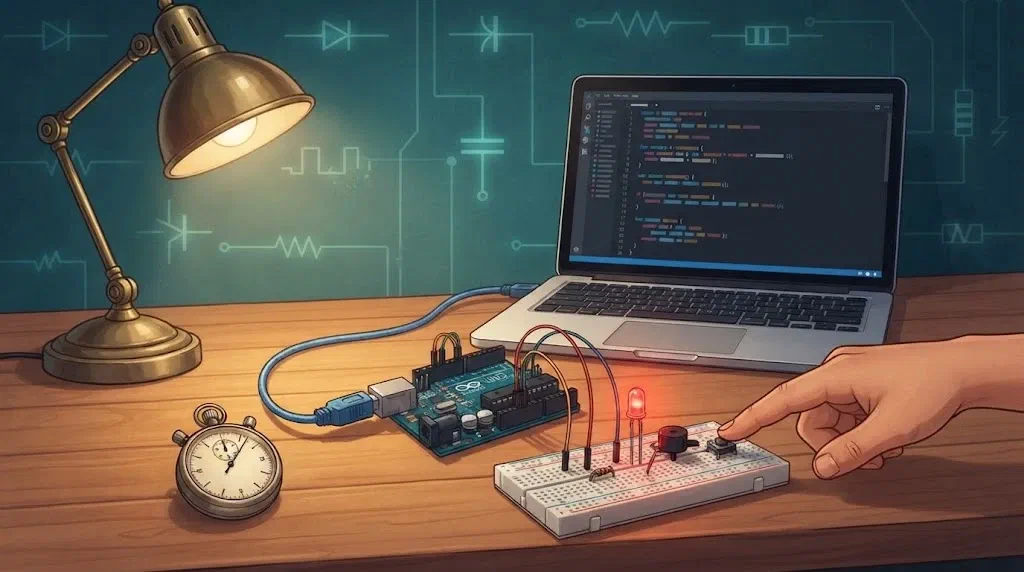
A real pinball machine is always in some state. While nobody is playing, the lamps blink and the display scrolls a message. This is attract mode, in which the machine tries to attract players. When a player presses Start, the game begins. When the ball falls into the drain, the machine waits for the next ball, and at the end it shows the score and starts attracting players again. The same button means something different in each state, and each state has its own lamps and its own sounds.
A program that works like this is called a state machine. Today we’ll write one for a small game, a reaction game. Along the way, we’ll learn to play sounds that don’t stop the program.
What does this mean for the pinball machine?
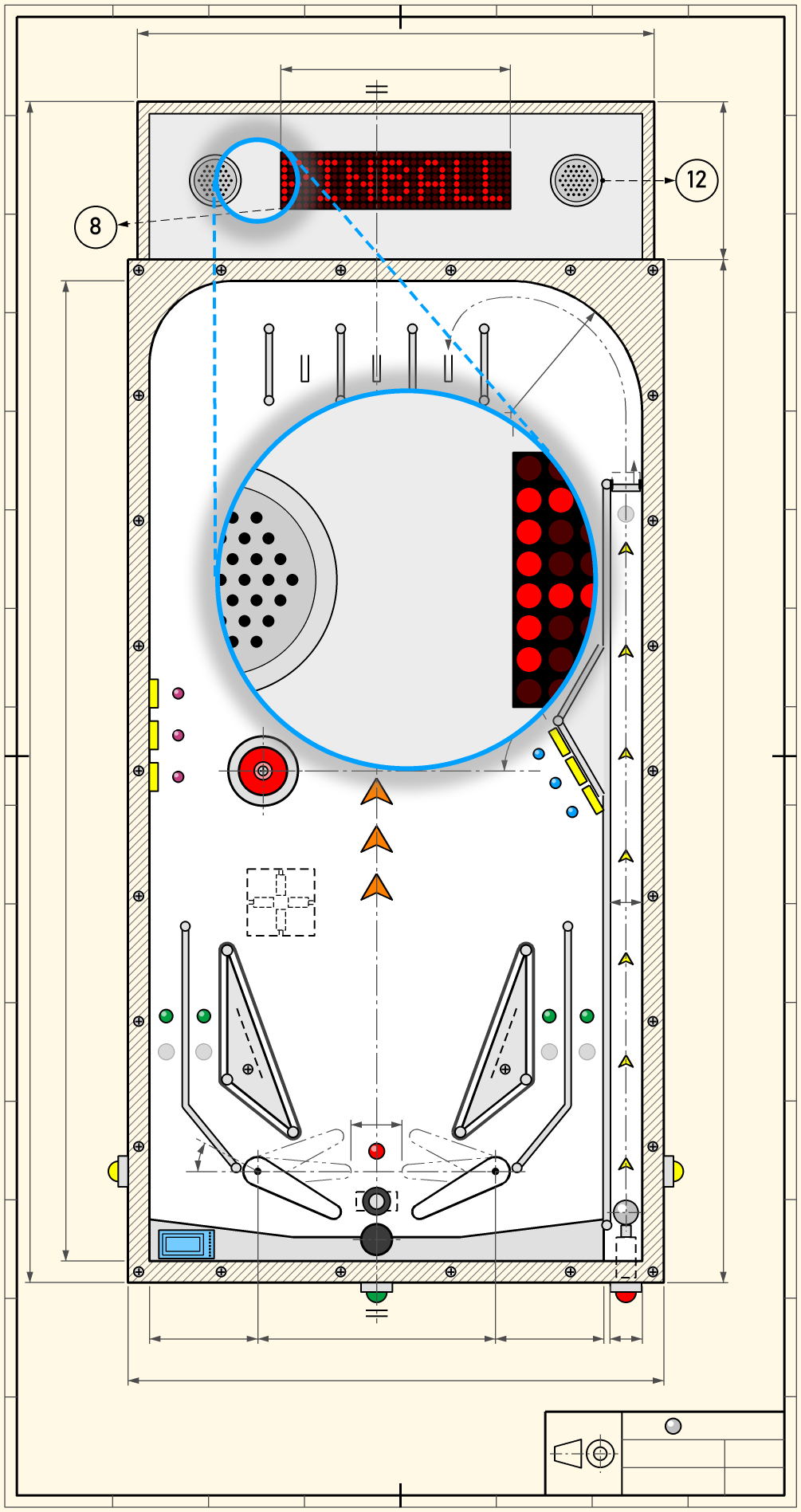
On the top view of our pinball machine, a blue circle marks part of the left speaker and of the first of the four LED matrices on the display, and the large circle shows them enlarged. The lit dots on the matrix are part of the letter P of the word PINBALL, which the display scrolls while the machine attracts players, and the game's sounds come from the speaker. The pinball page explains the other parts of the drawing.
The pinball machine's main Arduino will be a state machine, just with more states: the machine attracts players, a game is running, the ball is lost, the player has shoved the machine too hard (tilt), and the game is over. Each state has its own lamps, sounds and rules for the buttons. When we design the pinball machine, we'll first draw the rules as a state diagram, and only then write the program.
In a pinball machine, several things always happen at once: the lamps blink, a sound plays, and the program must notice the ball at any moment. That's why there mustn't be a delay() there either.
How to play
- While the game is waiting for a player, the LED blinks slowly.
- You press the button. The LED goes off, and the game waits for a random time, from 1 to 4 seconds.
- The LED lights up and the buzzer beeps briefly. Now press the button as fast as you can!
- The program prints in the Serial Monitor how long it took you, in milliseconds.
If you press the button before the LED lights up, that’s too early. The buzzer then gives a long, low buzz.
Materials
Each participant gets:
- everything from the lesson Buttons done right: an Arduino Uno and a USB cable, a large breadboard, a small button, a 470 Ω resistor (yellow-violet-brown), a red LED, a 220 Ω resistor (red-red-brown) and jumper wires, and the Bounce2 library on the computer
- an active buzzer and a 68 Ω resistor (blue-grey-black), as in the lesson Traffic lights for cars and pedestrians
Extra challenge 2 needs one more button and one more 470 Ω resistor.
Wiring
The wiring rules are the same as in the last lesson. Start from the circuit of the last lesson: the LED is on D8 and the button on D2. Add the buzzer in the same place as on the pedestrian traffic light, in row 27.
| Part | Arduino pin | Wire from the Arduino | Resistor | Right side |
|---|---|---|---|---|
| LED | D8 | a3 | 220 Ω: e3–f3 | red LED: long leg in j3, short leg in the right – line |
| Button | D2 | a8 | 470 Ω: b8–b12 | button in e12, e14, f12, f14; wire from j14 to the right – line |
| Buzzer | D5 | a27 | 68 Ω: e27–f27 | the buzzer’s + leg in j27, the other leg in the right – line |
| Common GND | GND | right – line | – | – |
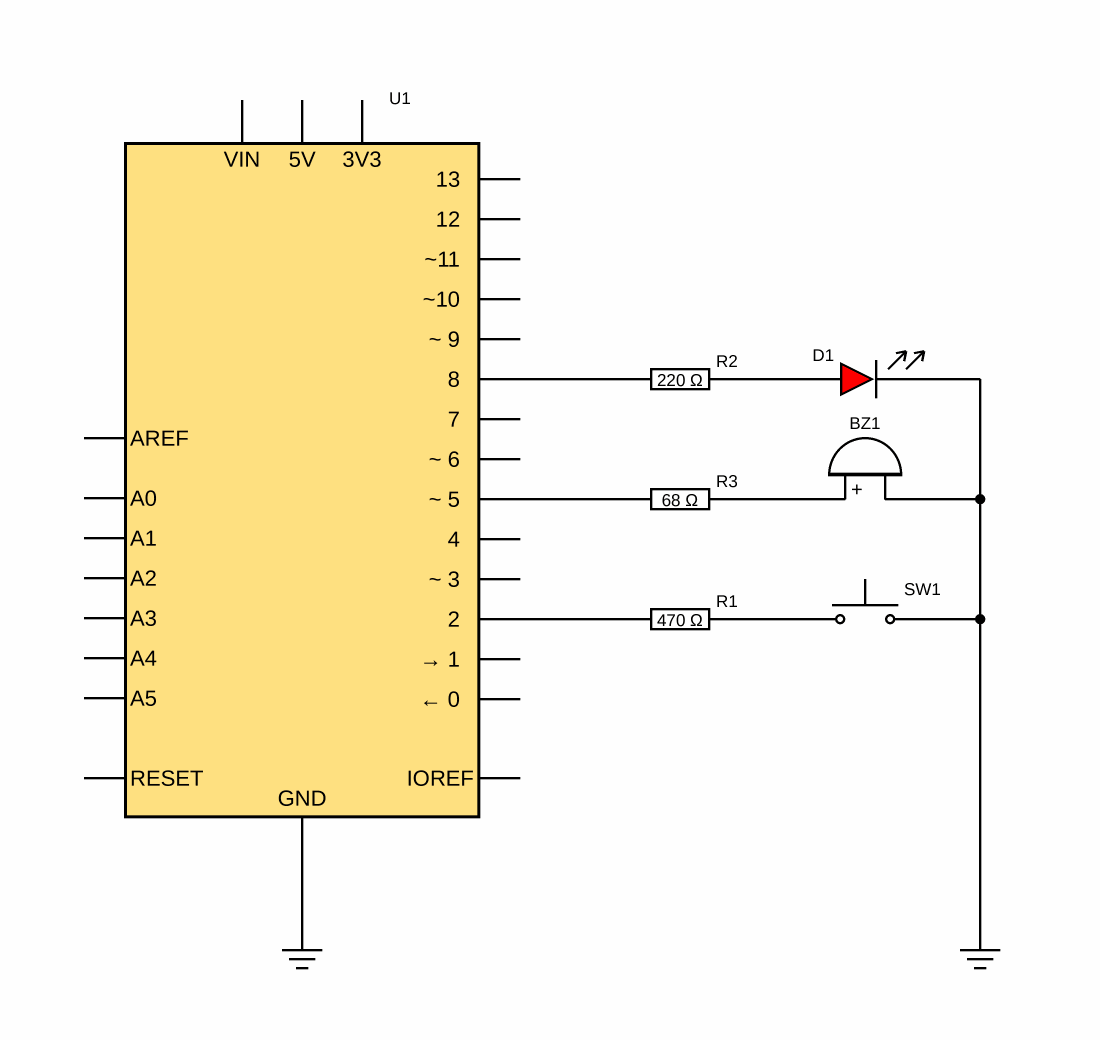
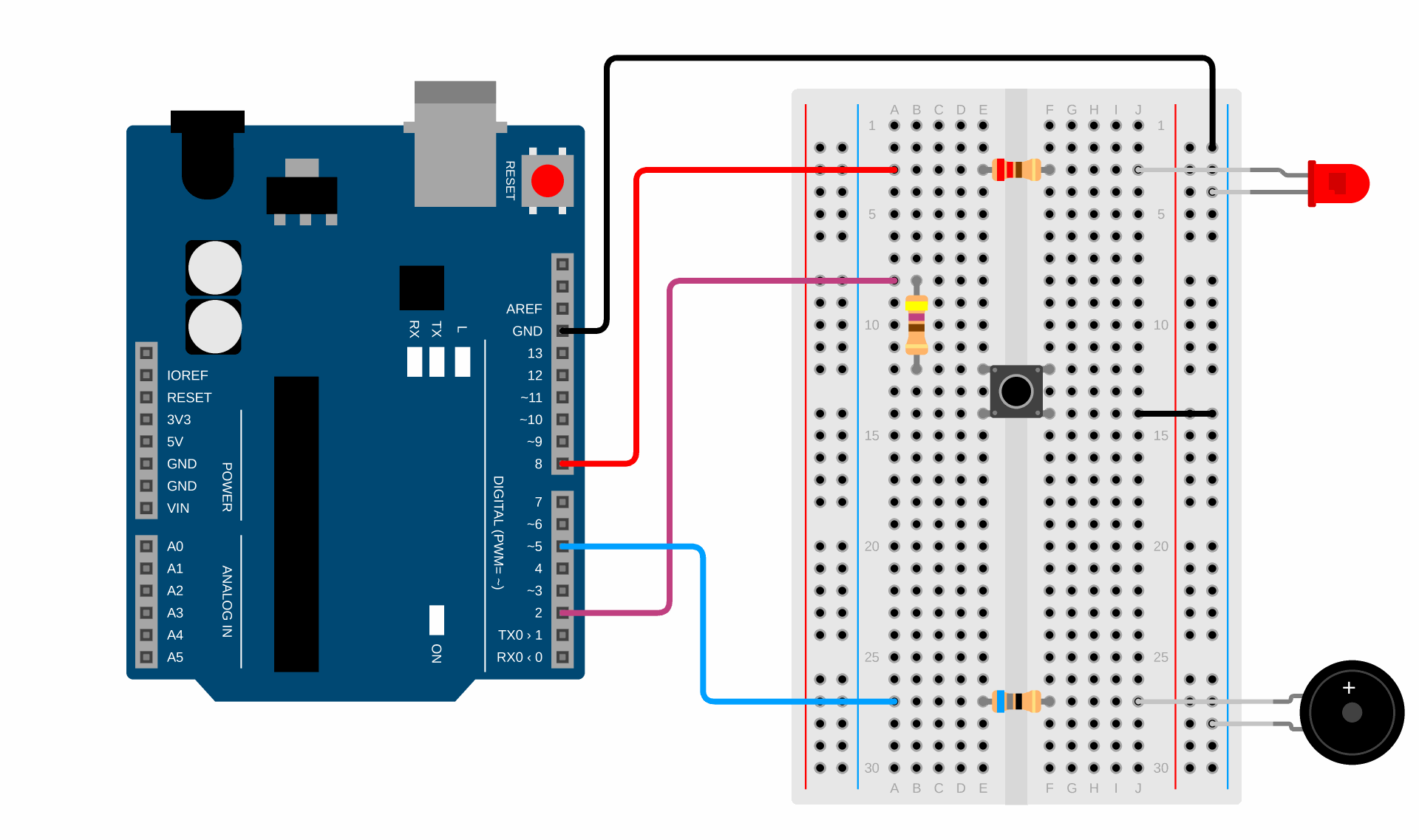
- The buzzer has a polarity. The + leg is longer, and there is also a + mark on the top of the case. A buzzer put in the wrong way round stays silent.
- The 68 Ω resistor lowers the current through the pin and also makes the buzzer quieter.
- Pin A0 stays unconnected. We’ll find out why in Exercise 2.
Exercise 1: A sound that doesn’t wait
We met the buzzer on the pedestrian traffic light. An active buzzer buzzes by itself, always with the same tone, and tone() switches it on and off very quickly, so we hear different sounds (there’s more about this in the section The active buzzer). The first program gives a short beep with every press, and the LED is on while we hold the button. We read the button with the Bounce2 library, like the Start button at the end of the last lesson.
// C++
#include <Bounce2.h>                   // the library for debouncing buttons

const int button = 2;
const int ledPin = 8;
const int buzzer = 5;

Bounce2::Button player;                // the player's button

void setup() {
  player.attach(button, INPUT_PULLUP); // the button is on D2, with the built-in pull-up resistor
  player.interval(10);                 // a change counts when the button has been still for 10 ms
  player.setPressedState(LOW);         // pressed is LOW
  pinMode(ledPin, OUTPUT);
  pinMode(buzzer, OUTPUT);
}

void loop() {
  player.update();                     // read and debounce the button

  if (player.pressed()) {
    tone(buzzer, 800, 60);             // a short beep with every press
  }
  digitalWrite(ledPin, player.isPressed()); // the LED is on while the button is pressed
}
Upload the program and press the button a few times, briefly and for longer.
What’s new in the program?
Bounce2::Button player;– The button is an object, like the Start button in Exercise 5 of the last lesson. It is calledplayer, because it is the player’s button.player.update();– The library reads and debounces the button. It must be in every pass throughloop(), once, before any questions about the button.player.pressed()andplayer.isPressed()– The first givestrueonly in the pass in which the button has just been pressed, and the second while it is pressed.tone(buzzer, 800, 60);– As on the traffic light: a sound with a frequency of 800 Hz lasts 60 ms.tone()only starts the sound, and the program goes on at once. After 60 ms the Arduino’s chip switches the sound off by itself while the program does something else. That’s why the LED follows the button even while the buzzer is buzzing.
A fanfare with delay()
Now let every press play a short fanfare of three sounds. In loop(), replace the line with tone() with these lines:
// C++
    tone(buzzer, 400, 100);
    delay(150);
    tone(buzzer, 600, 100);
    delay(150);
    tone(buzzer, 800, 300);
    delay(300);
Upload the program and try it:
- Press the button and hold it. When does the LED light up?
- Press the button five times, as fast as you can. How many fanfares did you hear?
Why is the LED late, and why do some presses get lost?
delay() calls, the program just waits for 600 ms. It doesn’t look at the button and doesn’t switch the LED, so the LED lights up only when the fanfare is over. A press that starts and ends during the fanfare isn’t seen by the program at all.Experiment: delete all three delay() calls and upload the program again. What do you hear now?
Why do we hear only the last sound without delay()?
tone() doesn’t wait for the sound to end. All three calls run one after another, within one millisecond, and each new sound replaces the previous one at once. The Arduino plays only one sound at a time, so only the last one, at 800 Hz, is left.To play the fanfare without delay(), the program would have to remember which sound comes next and when to start it. In other words, it would have to remember where it has got to. That’s exactly what a state machine does.
Exercise 2: The game as a state machine
The reaction game is always in one of four states. Each state has its own name, and the game moves from one state to another when something happens: when the player presses the button, or when some time has passed.
| State | What happens | When it changes | To state |
|---|---|---|---|
WAITING | the game waits for a player | press | GET_READY |
GET_READY | the LED is off, the game waits for a random 1–4 s | the random time is up | GO |
| press: too early! | RESULT | ||
GO | the LED is on, we measure the time | press: print the time | RESULT |
RESULT | a 2 s pause | 2 s have passed | WAITING |
We can draw the same table as a state diagram: each state is a rectangle, and the arrows are the changes between states. Next to each arrow is what causes the change. We’ll draw a diagram like this later for the rules of the whole pinball machine.
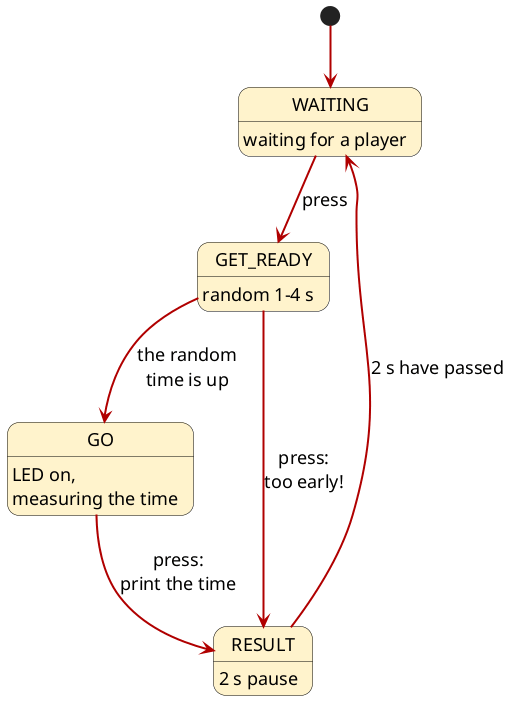
The program is longer than the ones so far, but each part of it is short. We read the button with the Bounce2 library, as in Exercise 1.
// C++
#include <Bounce2.h>                      // the library for debouncing buttons

const int button = 2;
const int ledPin = 8;
const int buzzer = 5;
const unsigned long PAUSE_TIME = 2000;    // how long the RESULT state lasts

// The game's states
const int WAITING = 0;                    // the game waits for a player
const int GET_READY = 1;                  // a random wait before the signal
const int GO = 2;                         // the LED is on: press as fast as you can!
const int RESULT = 3;                     // a short pause after the result

Bounce2::Button player;                   // the player's button
int state = WAITING;                      // which state the game is in now
unsigned long stateStart = 0;             // when the current state began
unsigned long waitTime = 0;               // how long GET_READY lasts

void setup() {
  player.attach(button, INPUT_PULLUP);
  player.interval(10);
  player.setPressedState(LOW);
  pinMode(ledPin, OUTPUT);
  pinMode(buzzer, OUTPUT);
  Serial.begin(9600);
  randomSeed(analogRead(A0));             // A0 is floating: a different start every time
  Serial.println("Press the button to start.");
}

void loop() {
  player.update();                                  // we read the button once, at the start
  unsigned long inState = millis() - stateStart;    // how long the game has been in the current state

  switch (state) {
    case WAITING:
      if (player.pressed()) {
        waitTime = random(1000, 4001);    // from 1 to 4 s
        Serial.println("Get ready...");
        changeState(GET_READY);
      }
      break;

    case GET_READY:
      if (player.pressed()) {           // a press before the signal
        tone(buzzer, 150, 400);           // long low sound
        Serial.println("Too early! Wait for the LED to light up.");
        changeState(RESULT);
      } else if (inState >= waitTime) {   // time for the signal
        digitalWrite(ledPin, HIGH);
        tone(buzzer, 800, 60);
        changeState(GO);
      }
      break;

    case GO:
      if (player.pressed()) {
        digitalWrite(ledPin, LOW);
        Serial.print("Your time: ");
        Serial.print(inState);            // from the signal to the press
        Serial.println(" ms");
        changeState(RESULT);
      }
      break;

    case RESULT:
      if (inState >= PAUSE_TIME) {
        Serial.println("Press the button for a new game.");
        changeState(WAITING);
      }
      break;
  }
}

// Moving to a new state: we also remember when it began.
void changeState(int newState) {
  state = newState;
  stateStart = millis();
}
Upload the program, open the Serial Monitor (9600 baud) and play a few rounds. Once, try pressing too early on purpose.
What’s new in the program?
const int WAITING = 0;– The states are ordinary numbers, 0, 1, 2 and 3, but with names.state == GOis easier to read thanstate == 2, and if we misspell a name, compiling gives an error.int state = WAITING;– A variable that remembers which state the game is in. At the start, the game waits for a player.switch (state) { case WAITING: ... break; }–switchlooks at the value of the variablestateand jumps to thecasewith the same value. Only the code of that state runs, up to the wordbreak, which ends theswitch. We could write the same thing with a chain ofifandelse if, but this way it’s easy to see what each state does.- Don’t forget
break. Without it, the program carries on running the code of the next state too, as if it weren’t there. void changeState(int newState)– Every change of state goes through this function. Along with the new state, it remembers the moment the state began,stateStart.unsigned long inState = millis() - stateStart;– How many milliseconds the game has already been in the current state. In theGET_READYstate, we compare it with the random wait, in theRESULTstate with the 2 s pause, and in theGOstate it is exactly the time from the signal to the press: your reaction time.random(1000, 4001)– A random number from 1000 to 4000. The upper limit, 4001, never comes out, so we write one more.randomSeed(analogRead(A0));–random()isn’t really random. After every start it gives the same numbers in the same order, as if it read them from a long table.randomSeed()chooses where in that table we start. Pin A0 is floating, soanalogRead(A0)reads something different every time. The floating pin from the last lesson is useful to us here.player.update();at the top ofloop()– We read the button once, at the start of every pass, and the states only askplayer.pressed().update()is outside theswitch, so the library keeps track of the button in every state, including theRESULTstate, where we don’t care about presses.- The time measured is a little longer than your reaction. Bounce2 reports a press only once the button has been still for 10 ms, as we saw in the last lesson. So every time is about 10 to 15 ms longer. Every player gets the same extra time, so it doesn’t change who is fastest.
- There isn’t a single
delay()inloop(). In theGET_READYstate, the program watches the time and the button at the same time. That’s why it can notice a press that comes too early.
Why don't we write the random wait as delay(waitTime)?
delay() the program doesn’t look at the button. It wouldn’t notice a press that comes too early, so the player couldn’t make a mistake. They could press the button before the signal and hold it, and the program would measure a time of almost 0 ms.How fast do you react?
Most people react to light in about 200 to 250 ms, which is a quarter of a second. We react to a sound a little faster. In that time, the eye sees the light, the brain decides it's time to press, and the nerves move the muscles of the finger. Tiredness and not paying attention make that time longer, and practice shortens it only a little.
Our game gives a short sound as well as the LED. Try out what your time is when you only watch the LED, and what it is when you close your eyes and only listen to the buzzer.
Exercise 3: Attract mode and the best time
The game works, but while it waits for a player, nothing shows that it’s ready. We’ll add what every pinball machine has:
- while the game waits, the LED blinks every 500 ms, like the yellow light of a traffic light with a fault;
- a short sound when the game starts;
- the best time since the Arduino was switched on, with a special sound when someone beats it.
The state diagram stays the same. We don’t add new states or new changes between them, only what happens inside the WAITING and GO states.
The whole program
// C++
#include <Bounce2.h>                      // the library for debouncing buttons

const int button = 2;
const int ledPin = 8;
const int buzzer = 5;
const unsigned long BLINK_TIME = 500;     // while the game waits, the LED changes every 500 ms
const unsigned long PAUSE_TIME = 2000;    // how long the RESULT state lasts

// The game's states
const int WAITING = 0;                    // the game waits for a player: the LED blinks
const int GET_READY = 1;                  // a random wait before the signal
const int GO = 2;                         // the LED is on: press as fast as you can!
const int RESULT = 3;                     // a short pause after the result

Bounce2::Button player;                   // the player's button
int state = WAITING;                      // which state the game is in now
unsigned long stateStart = 0;             // when the current state began
unsigned long waitTime = 0;               // how long GET_READY lasts
unsigned long bestTime = 0;               // the best time; 0 means there isn't one yet

bool ledOn = false;                       // for blinking while the game waits
unsigned long lastBlink = 0;              // when the LED last changed

void setup() {
  player.attach(button, INPUT_PULLUP);
  player.interval(10);
  player.setPressedState(LOW);
  pinMode(ledPin, OUTPUT);
  pinMode(buzzer, OUTPUT);
  Serial.begin(9600);
  randomSeed(analogRead(A0));             // A0 is floating: a different start every time
  Serial.println("Press the button to start.");
}

void loop() {
  player.update();                                  // we read the button once, at the start
  unsigned long inState = millis() - stateStart;    // how long the game has been in the current state

  switch (state) {
    case WAITING:
      if (millis() - lastBlink >= BLINK_TIME) {     // the LED blinks without delay()
        lastBlink = millis();
        ledOn = !ledOn;
        digitalWrite(ledPin, ledOn);
      }
      if (player.pressed()) {
        ledOn = false;
        digitalWrite(ledPin, LOW);
        tone(buzzer, 400, 50);            // short sound: the game starts
        waitTime = random(1000, 4001);    // from 1 to 4 s
        Serial.println("Get ready...");
        changeState(GET_READY);
      }
      break;

    case GET_READY:
      if (player.pressed()) {           // a press before the signal
        tone(buzzer, 150, 400);           // long low sound
        Serial.println("Too early! Wait for the LED to light up.");
        changeState(RESULT);
      } else if (inState >= waitTime) {   // time for the signal
        digitalWrite(ledPin, HIGH);
        tone(buzzer, 800, 60);
        changeState(GO);
      }
      break;

    case GO:
      if (player.pressed()) {
        digitalWrite(ledPin, LOW);
        Serial.print("Your time: ");
        Serial.print(inState);            // from the signal to the press
        Serial.println(" ms");
        if (bestTime == 0 || inState < bestTime) {
          bestTime = inState;
          tone(buzzer, 1000, 300);        // long high sound: a new best time
          Serial.println("New best time!");
        } else {
          tone(buzzer, 600, 100);
        }
        changeState(RESULT);
      }
      break;

    case RESULT:
      if (inState >= PAUSE_TIME) {
        Serial.print("Best time: ");
        Serial.print(bestTime);
        Serial.println(" ms. Press the button for a new game.");
        changeState(WAITING);
      }
      break;
  }
}

// Moving to a new state: we also remember when it began.
void changeState(int newState) {
  state = newState;
  stateStart = millis();
}
Upload the program and play a few rounds. Let the person next to you play too: who has the best time?
What’s new in the program?
- Blinking happens only in the
WAITINGstate. We used the same pattern withmillis()to blink the yellow light in the lesson Two traffic lights at a crossroads. The code incase WAITING:runs only while the game is waiting, so the LED doesn’t blink in the other states, without us having to forbid it anywhere. This is a big advantage of a state machine: each state has its own code. ledOn = false;anddigitalWrite(ledPin, LOW);– When the game starts, we switch the LED off. Otherwise it could stay on, because the last blink may have been just the on half.unsigned long bestTime = 0;– The best time. The value 0 means there isn’t a best time yet, because a reaction time of 0 ms isn’t possible.if (bestTime == 0 || inState < bestTime)–||means or. The condition is true if there isn’t a best time yet or if the new time is better than the best time. In the last lesson we met&&, which means and.- Every important event has its own sound: the start of the game, the signal, a press that’s too early, an ordinary time and a new best time. All the sounds are started with
tone()and don’t stop the program. - The best time is forgotten when we switch the Arduino off. On the pinball machine we’ll later save the high scores in a memory that keeps them even when the Arduino is switched off.
If something doesn’t work
- The buzzer is silent ⇒ Is the longer leg, marked +, in j27, and the other one in the right – line? Is the wire from D5 in a27, and the resistor from e27 to f27?
- The LED doesn’t light up or doesn’t react to the button ⇒ The LED and the button are wired as in the last lesson. Look at the section If something doesn’t work there.
- The Serial Monitor shows nothing or shows strange characters ⇒ Choose 9600 baud.
- The random wait is the same after every start ⇒ Is something connected to pin A0? Is the line with
randomSeed()insetup()? - The game skips states or does something that isn’t in the diagram ⇒ Is there a
break;at the end of everycase? - The game doesn’t react to the button ⇒ Is
player.update();at the start ofloop()? Without it, the library never reads the button. - The error
Bounce2.h: No such file or directory⇒ The Bounce2 library isn’t installed. Install it as in the last lesson. - The program won’t upload ⇒ Check that the board Arduino Uno and the right port are selected in the Arduino IDE.
Extra challenges
- Fallen asleep? If the player doesn’t press the button within 3 s in the
GOstate, let the program print Too slow! and go to theRESULTstate. Which arrow do you then need to add to the state diagram? - Two players. Add a second button on D4, wired as in extra challenge 1 of the last lesson. In the
GOstate, the player who presses their button first wins. Whoever presses too early loses. Tip: the second button gets its own object, for exampleplayer2, and at the start ofloop()you callupdate()for both. - A fanfare without
delay(). Let the game play the three-sound fanfare from Exercise 1 at the start, but withoutdelay(). Tip: store the frequencies in an array,int notes[] = {400, 600, 800};. An array is a variable with several values, and we get to each one by its position:notes[0]is 400,notes[2]is 800. The program has to remember which note comes next and when to start it. That’s a small state machine inside the game. - Average. After every five rounds, let the program print the average time of those five rounds. A press that’s too early doesn’t count as a round.
 What did we learn?
- A state machine is a program that is always in one of several states. In each state it does something different, and it moves to another state when something happens.
- We draw states and the changes between them as a state diagram: the rectangles are states, and the arrows are changes.
- States are numbers with names (
const int WAITING = 0;), and the variablestateremembers the current state. switchandcaserun only the code of the state the program is in. Eachcaseends withbreak.- If we remember the time at every change of state,
millis() - stateStarttells us how long the program has been in that state. - With the Bounce2 library we read the button once, with
update()at the start of every pass, and the states askpressed(). tone(pin, frequency, duration)only starts the sound and doesn’t wait for it to end. The Arduino plays one sound at a time: a new one replaces the previous one.delay()stops the whole program. During that time the Arduino doesn’t see the button.random(from, to)gives a random number, and the upper limit never comes out.randomSeed(analogRead(A0))with a floating pin gives different numbers after every start.||means or, and&&means and.
Quick quiz
1. What is a state machine?
2. Why does the LED in Exercise 1 follow the button even while the buzzer is buzzing?
tone(buzzer, 800, 60) only starts the sound, and the program goes on at once. After 60 ms the Arduino’s chip switches the sound off by itself, and meanwhile the program keeps reading the button and switching the LED.3. What happens if we forget break at the end of a case?
switch, but carries on running the code of the next state too. The game then does things that aren’t in the state diagram, for example it skips a state.4. What does inState mean in the GO state?
GO state. When the player presses the button, that’s their reaction time.5. Can random(1000, 4001) give 4001?
6. Why must pin A0 stay unconnected in this game?
randomSeed(analogRead(A0)) needs a random value. A floating pin reads something different every time, so after every start the game waits for different times. If the pin were connected, it would always read the same value, and after every start the game would wait for the same times in the same order.7. How does the game notice a press that comes too early?
GET_READY state, the program checks both the time and the button in every pass through loop(). If the button is pressed before the wait is over, the press came too early, so the game goes to the RESULT state.8. Why doesn't the LED blink in the GO state, even though the blinking code is in the program?
case WAITING:, so it runs only while the game is in the WAITING state. In the GO state, only the code from case GO: runs.