Lives and conditions
A steady-hand game with the micro:bit: a lives variable, if / else, a wire as a switch on a pin, start and finish on the touch logo, and a stopwatch.
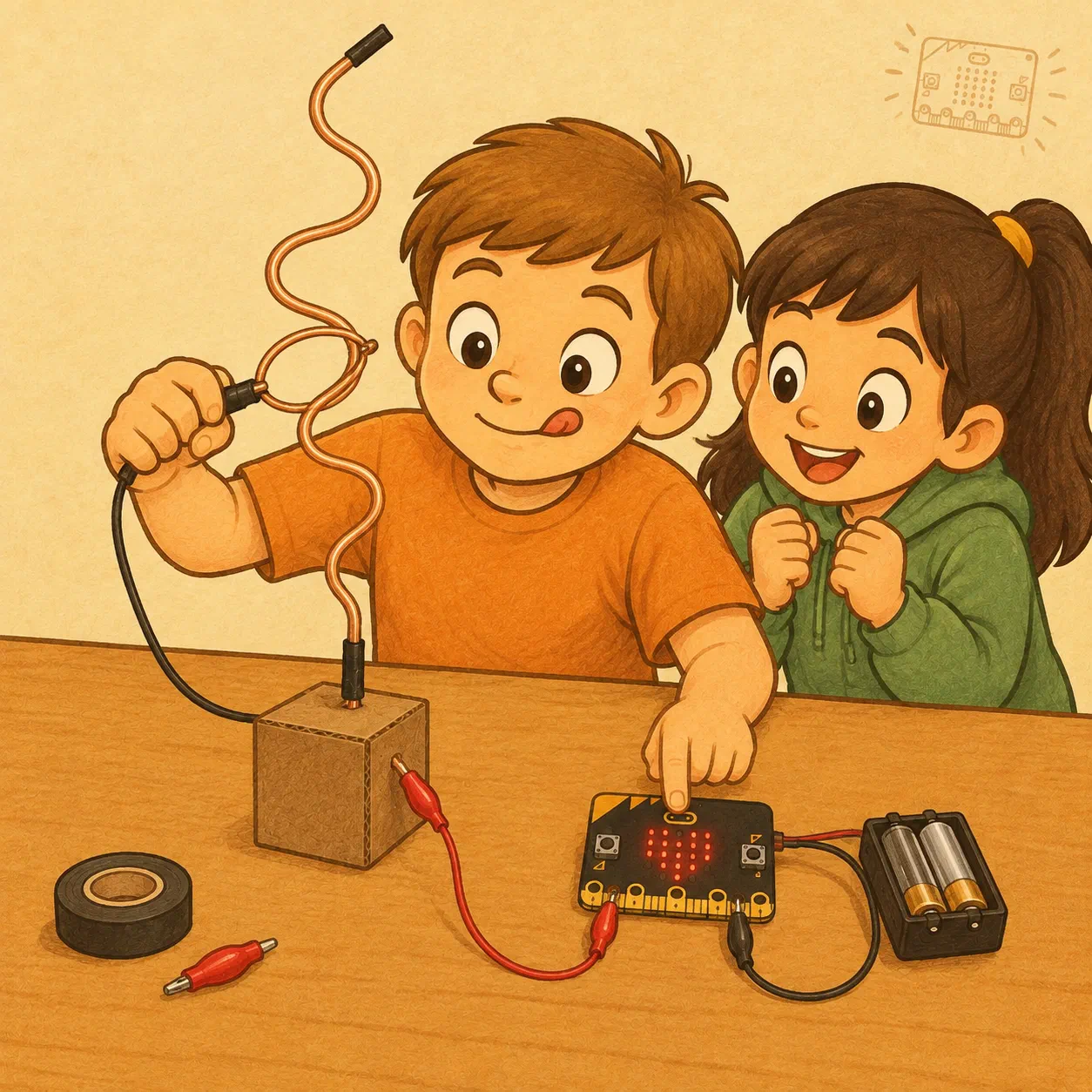
But how does the game know it’s over? It keeps asking one simple question: do I still have lives? If the answer is yes, the game goes on. If the answer is no, it shows that the game is over.
A question like that is called a condition.
Today we will:
- make a variable, zivoti (Croatian for “lives”), that remembers how many lives we have;
- learn the if / else block, which the program uses to make decisions;
- make a steady-hand game: a wire and a loop will be a switch connected to a pin of the micro:bit;
- start and end the game by touching the logo;
- measure how long the game took and show the time on the screen without scrolling.
We work the same way as before:
predict ⇒ run ⇒ change one thing ⇒ test again ⇒ explain the result
Materials
- micro:bit V2, a USB cable and a battery pack
- 2 × crocodile clips
- Stiff bare copper wire, about 40 cm – the track (prepared by the leader)
- A shorter piece of the same wire, about 10 cm – the loop
- A cardboard box – the stand for the track
- Insulating tape
Exercise 1: Three lives
Technique: a variable remembers the number of lives
You already know variables from the score counter. Now a variable will count down: we start with three lives, and every “hit” takes one away. To begin with, a hit will be shaking the micro:bit.
In MakeCode we call the variable zivoti. In the Croatian lessons, names in programs are written without the letters č, ć, š, ž and đ, so životi becomes zivoti.
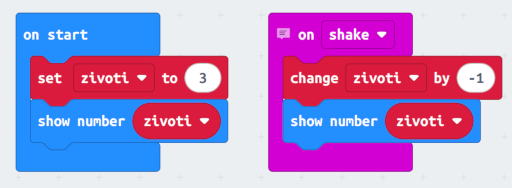
Reducing by 1 means adding −1. In MakeCode, the block change zivoti by -1 does that.
Predict
- What will the micro:bit show at the start?
- What will it show after the first shake? And after the third?
- What do you think will happen when you shake it a fourth time?
Try it
Run the program in the simulator and click SHAKE four times. Then download it to the micro:bit and shake it gently.
Conclusion: After the third shake the micro:bit shows 0, then −1, −2 and so on. The program counts, but it doesn’t know the game is over. It needs a rule: when there are no lives left, the game is over.
Exercise 2: A condition: if… else
Technique: the program makes a decision
A condition is a question whose answer is yes or no. You make decisions based on conditions all the time:
- If it’s raining, take an umbrella. Else take a cap.
- If the pedestrian light is green, cross the road. Else wait.
In MakeCode, the if / else block from the Logic category does this. We put a question into it, for example is zivoti equal to 0?. For a question like that we use a comparison block from the same category:
- = – equal to
- > – greater than
- < – less than
If the answer is yes, the micro:bit runs the blocks in the if part. If the answer is no, it runs the blocks in the else part. It never runs both parts.
Predict
- What will be shown after the first, second and third shake?
- What will be shown after the fourth shake? Careful: what is zivoti then? Is that equal to 0?
Try it
Build the program and shake the micro:bit four times.
After the third shake we see a skull. But after the fourth, −1 appears! The lives have dropped to −1, and −1 is not equal to 0, so the micro:bit ran the else part.
Fix it
Let’s add another condition: we take a life away only if there is one left.
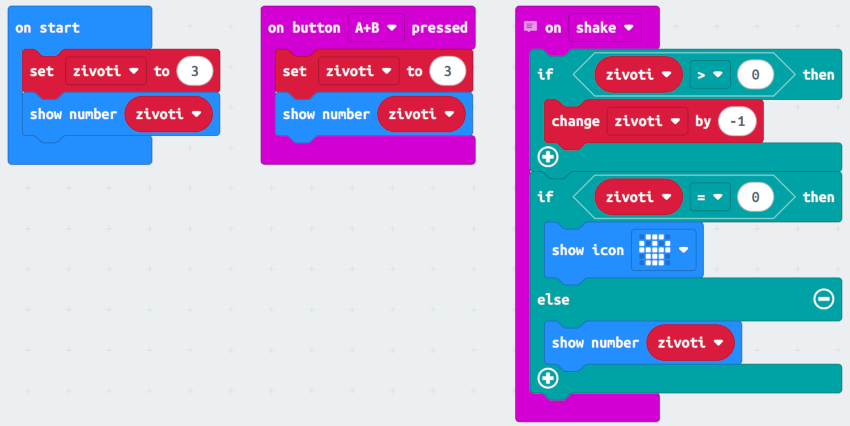
The first condition has no else part: if we have no lives, we do nothing. Buttons A+B start the game again, like the reset in the score counter.
Change one thing
Make the game start with 5 lives. How many times do you have to shake the micro:bit now to see the skull? In how many places in the program do you have to change the number 3?
Extra challenge
When only one life is left, make the micro:bit show a surprised face instead of the number. Hint: click the + at the bottom of the if / else block and you get another question, else if.
Exercise 3: Making the steady-hand game
Technique: the wire and the loop are a switch
In the steady-hand game the loop starts at the bottom of a wavy wire. You guide it upwards and pull it off the top end of the wire without touching the wire. Every touch takes a life.
Remember the Breadboard lab: when you press the button, its metal parts touch and the circuit closes. The wire and the loop do the same. When they touch, they close the circuit between pin P1 and GND, and the micro:bit notices.
Making the track
- Bend the long wire into waves. Don’t make the bends too sharp, because the loop has to get through them. Leave the bottom 8 cm or so of the wire straight.
- Turn the box upside down, with the open side on the table. Push the straight bottom end of the wire through the top of the box, so a few centimetres of bare wire go inside the box and the wire stands upright. The box is the stand, and the top end of the wire stays free in the air.
- Just above the box, wrap about 3 cm of insulating tape. That is the start: the loop rests there before the game.
- Wrap the tip of the wire in tape so it doesn’t poke anyone. Keep the tape thin, because the loop has to get over it.
- Bend the short wire around a pencil into a closed ring, and let the rest of the wire be the handle. Wrap the handle in insulating tape.
- Thread the loop onto the wire from the top and slide it down to the start, onto the tape.
Connecting
The micro:bit with its battery pack lies on the table next to the box, near the start, so you can touch the logo with your other hand.
- Track (the bare end of the wire inside the box) ⇒ crocodile clip ⇒ P1
- Loop (end of the handle) ⇒ crocodile clip ⇒ GND
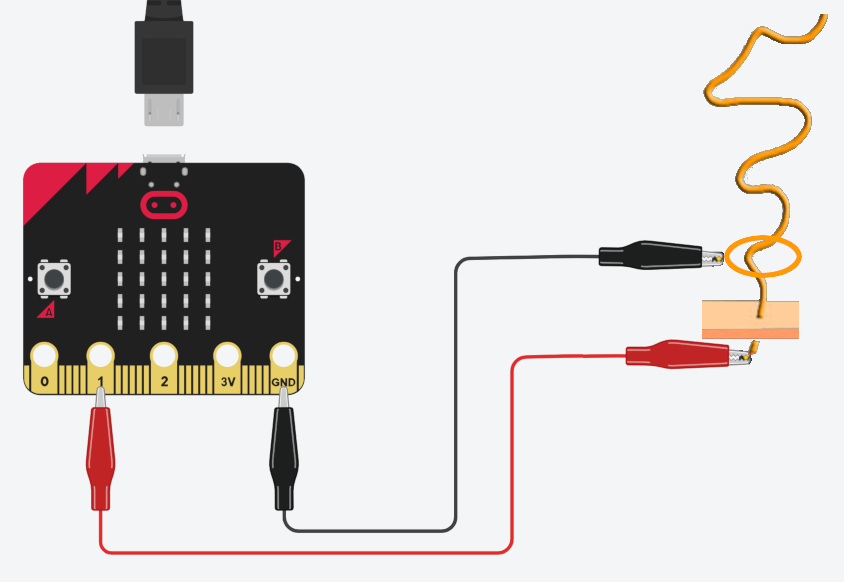
Attach the track’s clip to the wire inside the box and bring its lead out under the edge of the box to the micro:bit. That way the clip doesn’t get in the way of the game. Check that the two crocodile clips don’t touch each other. When you play, hold the loop only by the taped handle.
Make a new project!
Don't carry on in the traffic light program from the last lesson. There, pin P1 sent current to the yellow LED. If a pin like that touched GND, it would make a short circuit.
In the steady-hand game, pin P1 only listens for whether it is connected to GND. That's why the wire touching the loop is safe, just like pressing a button.
A pin that sends and a pin that listens
In the traffic light, the pin was an output: the micro:bit sent 1 or 0 through it to switch the LED on and off.
Today the pin is an input: the micro:bit doesn't switch anything on, it checks whether the pin is connected to GND. Buttons A and B work the same way inside.
Exercise 4: The steady-hand game with a start and a finish
Technique: one touch, two decisions
Now we put it all together: the lives from exercise 2 and the switch from exercise 3. We will start and end the game by touching the logo.
The logo is the gold sign above the screen of the micro:bit V2. It feels the touch of a finger, like a button. The on logo touched block from the Input category reacts as soon as you touch it.
How to play:
- The loop rests at the start, on the tape at the bottom of the wire.
- Touch the logo with your other hand: the game starts.
- Guide the loop upwards without touching the wire.
- When you pull the loop off the top end of the wire, touch the logo again: the game is over.
So the game has to remember whether it is on or not. The variable igraTraje (Croatian for “the game is on”) remembers that. It doesn’t remember a number, only yes or no: in MakeCode true (yes) or false (no), from the Logic category.
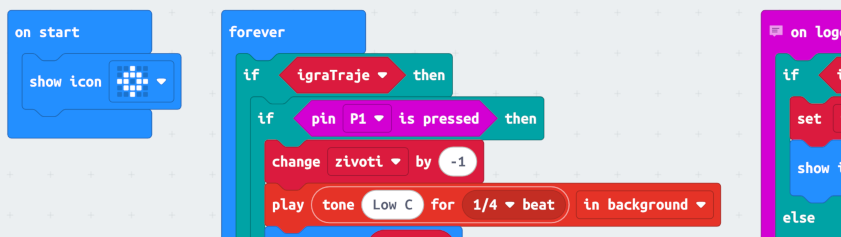

The same touch of the logo does two different things. When the game isn’t on, it starts it. When the game is on, it ends it. The condition IF igraTraje decides which.
In the forever block, the conditions sit one inside another:
- the first asks is the game on?;
- the second asks has the loop touched the wire?;
- the third asks was that the last life?.
We ask the second question only while the game is on, and the third only after a touch.
The pin P1 is pressed block is also in the Input category. The answer is yes for as long as the loop and the wire are touching. The forever block asks that question again and again, many times a second.
Why don't we use the on pin P1 pressed block?
There is also an on pin P1 pressed event, but it reacts only when a short touch ends, when you move the loop away. And if the loop stays on the wire for longer, it doesn't react at all! The game has to react straight away, so we ask pin P1 is pressed inside the forever block.
For the tone we use the play tone block with the in background option, as in the traffic light.
Predict
- What will the micro:bit show before you touch the logo?
- What will happen if you touch the wire before you touch the logo?
- After every touch of the wire, the program waits one second. What do you think would happen without that pause?
Try it
First play the game with the pause.
If touching the wire doesn’t take a life, check:
- that you started the game by touching the logo;
- that the track is connected to P1 and the loop to GND;
- that each crocodile clip holds bare wire, not tape;
- that the clips aren’t touching each other.
Then take out the pause block and touch the wire just once, briefly.
Conclusion: Without the pause, one touch takes all three lives. The loop touches the wire for a fraction of a second, but in that fraction of a second forever asks the question many times and takes a life every time. The one-second pause means: one touch is one life. Many video games do the same: after a hit you are invincible for a moment.
Put the pause back into the program.
Change one thing
- Change the pause from 1000 ms to 300 ms. Is the game harder or easier now? Why?
- Change the number of lives. When is the game the most fun: with one, three or five lives?
Fair play
At the end, touch the logo only when you really have pulled the loop off the wire. The micro:bit doesn't know where the loop is; only you know that.Exercise 5: How long did it take?
Technique: a stopwatch and time without scrolling
The micro:bit has its own clock. The running time (ms) block from the Input category tells you how many milliseconds have passed since the program started. We’ll make a stopwatch out of it:
- At the start we remember what the clock shows: pocetak = running time (pocetak is Croatian for “start”).
- At the finish we work out how much time has passed: vrijeme = running time − pocetak (vrijeme means “time”).
For example, if the game started when the clock showed 5000 ms and ended when it showed 17000 ms, the game took 17000 − 5000 = 12000 ms, which is 12 seconds. We turn milliseconds into seconds by dividing by 1000 and rounding (the round block from the Math category).
How do we show 12 without scrolling?
The show number block shows a single digit standing still, but a two-digit number like 12 scrolls across the screen. If you blink, you miss it.
The micro:bit’s screen has 25 dots: 5 rows of 5. So we’ll show the time with dots: one dot is one second. The dots light up the way you write in an exercise book: from left to right, and when a row is full, we move on to the next row.
- One full row is 5 seconds.
- 12 seconds is two full rows and two more dots.
- A full screen means 25 seconds or more.
You count the dots in fives: five, ten, fifteen… That’s quicker than waiting for a number to scroll past.
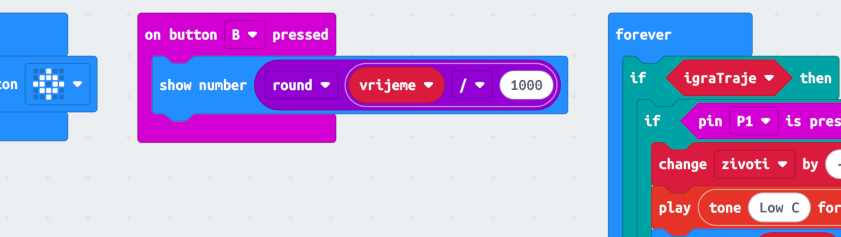
You get the function prikaziVrijeme (Croatian for “show time”) ready-made in the project. Its parameter sekunde means “seconds”. This is how it works:
- x is the column (from 0 on the left to 4 on the right), and y is the row (from 0 at the top to 4 at the bottom).
- The plot x y block from the Led category lights the dot in column x and row y.
- After each dot, x goes up by 1, so the next dot is to the right of it.
- When x reaches 5, the row is full: x goes back to 0 and y goes up by 1, so we carry on in the next row.
Button B shows the exact number of seconds, scrolling. Use it to check that you counted the dots correctly.
Predict
- How many dots will light up if the game takes 7 seconds? In which rows?
- What will the screen look like after 20 seconds?
- And after 40 seconds?
Try it
Play the game, count the dots and then press B. Is the number the same as your count?
Change one thing
If your game takes longer than 25 seconds, the screen fills up. Make one dot 2 seconds: divide by 2000 instead of 1000. How many seconds does a full screen mean now?
Extra tasks
For anyone who has finished everything. Do them in order.
1. Difficulty
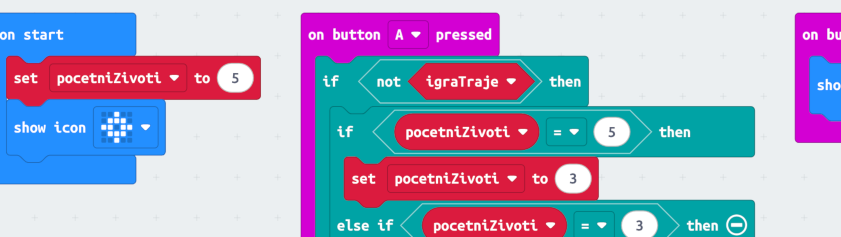
Before the start, button A changes the number of lives: 5 ⇒ 3 ⇒ 1 ⇒ 5…, from the easiest to the hardest The micro:bit shows the chosen number (a single digit, so it doesn’t scroll).
- Make a variable pocetniZivoti (Croatian for “starting lives”) and set it to 5, the easiest level, at the start.
- When you touch the logo to start, set zivoti to pocetniZivoti, not to 3.
- Button A may change the difficulty only while the game isn’t on. Otherwise someone could give themselves extra lives in the middle of the game! Hint: the not block from the Logic category turns the answer round, so not igraTraje means the game isn’t on.
2. Pictures for lives
Instead of the number, make the micro:bit show a different picture for each number of lives. For 5 lives you need 5 pictures, for example:
- 5 – big heart
- 4 – small heart
- 3 – happy face
- 2 – surprised face
- 1 – sad face
You can also draw your own pictures with the show leds block. Make a function prikaziZivote (Croatian for “show lives”) with an if / else if block and call it everywhere you showed the number of lives before.
3. Time limit
The game has to be finished in time, and the time limit depends on the difficulty: more lives means an easier game and more time. For example, the limit is 10 seconds for each starting life:
- 5 lives – 50 seconds
- 3 lives – 30 seconds
- 1 life – 10 seconds
At the start, work out rok = pocetniZivoti × 10 (rok is Croatian for “deadline”). In the forever block, while the game is on, check whether more time than the limit has passed: running time − pocetak > rok × 1000. If it has, the game is over and the micro:bit shows a sleeping face: you were too slow.
Hint: check the time before the touch of the wire, like this: IF the time is up … ELSE IF pin P1 is pressed …. Adjust the number 10 to your track, so the game is neither too easy nor too hard.
The solution to all three tasks:
Final challenge: Who has the steadiest hand?
Play the game three times and each time write down how many lives you had left and how many seconds the game took.
| Game | Lives left | Time (s) |
|---|---|---|
| 1. | ||
| 2. | ||
| 3. |
Did you do better when you hurried or when you went slowly?
Then explain your program to someone:
- Why does the same touch of the logo start the game one time and end it the next?
- What question does each of the conditions in the forever block ask?
- Why do we wait one second after a touch of the wire?
- How does the micro:bit work out how long the game took?
If you can explain that, you understand conditions, not just blocks.
Where will we use this again?
Lives, conditions and a switch on a pin will come back when we get robots. The robot will have lives too, and a switch on a pin will tell it when something touches it.
 What did we learn?
- The variable zivoti remembers how many lives we have. At the start we set it to 3, and every hit reduces it by 1.
- A condition is a question whose answer is yes or no.
- The if / else block runs one part of the program if the answer is yes and another if the answer is no. It never runs both.
- To compare numbers we use =, > and <.
- The condition zivoti = 0 is not true when the lives drop to −1. That’s why we take a life away only if zivoti > 0.
- A condition can be inside another condition.
- The wire and the loop work as a switch: when they touch, they close the circuit between pin P1 and GND.
- A pin can be an output (it sends current, as in the traffic light) or an input (it listens, as today).
- pin P1 is pressed inside the forever block notices a touch straight away.
- A pause after a hit means one touch takes only one life.
- The logo of the micro:bit V2 feels a touch. The same touch can start or end the game, and a condition decides which.
- A variable can also remember just yes or no: true or false.
- running time tells you how many milliseconds have passed since the program started. How long the game took is end − start.
- The screen has 25 dots, so we can show time with dots: one dot is one second, and a full row is five seconds.